

Installation
1
Install
Navigate to the Integrations page in Tembo and click the
Install button next to Slack.2
Authorize Slack Permissions
Authorize Tembo to access your Slack workspace. The bot requires the following permissions:
You’ll be redirected back to the Integrations page when authorization is complete.
| Permission | Purpose |
|---|---|
app_mentions:read | Detect when users mention @tembo |
channels:history | Read messages in public channels for context |
channels:read | Access basic channel information |
chat:write | Send messages and status updates |
commands | Handle slash commands |
files:write | Share diff images and code snippets |
groups:history | Read messages in private channels for context |
groups:read | Access private channel information |
im:history | Read direct messages for context |
im:read | Access direct message information |
im:write | Send direct messages |
mpim:history | Read group direct messages for context |
mpim:read | Access group direct message information |
mpim:write | Send group direct messages |
reactions:write | Add status indicators to messages |
users:read | Access user information for personalization |
3
Configure Repositories
Ensure you have connected your GitHub, GitLab, or Bitbucket repositories to Tembo first, as these will be available for selection in Slack commands.
4
Set Preferences
After installation, you can select a default repository for Slack tasks.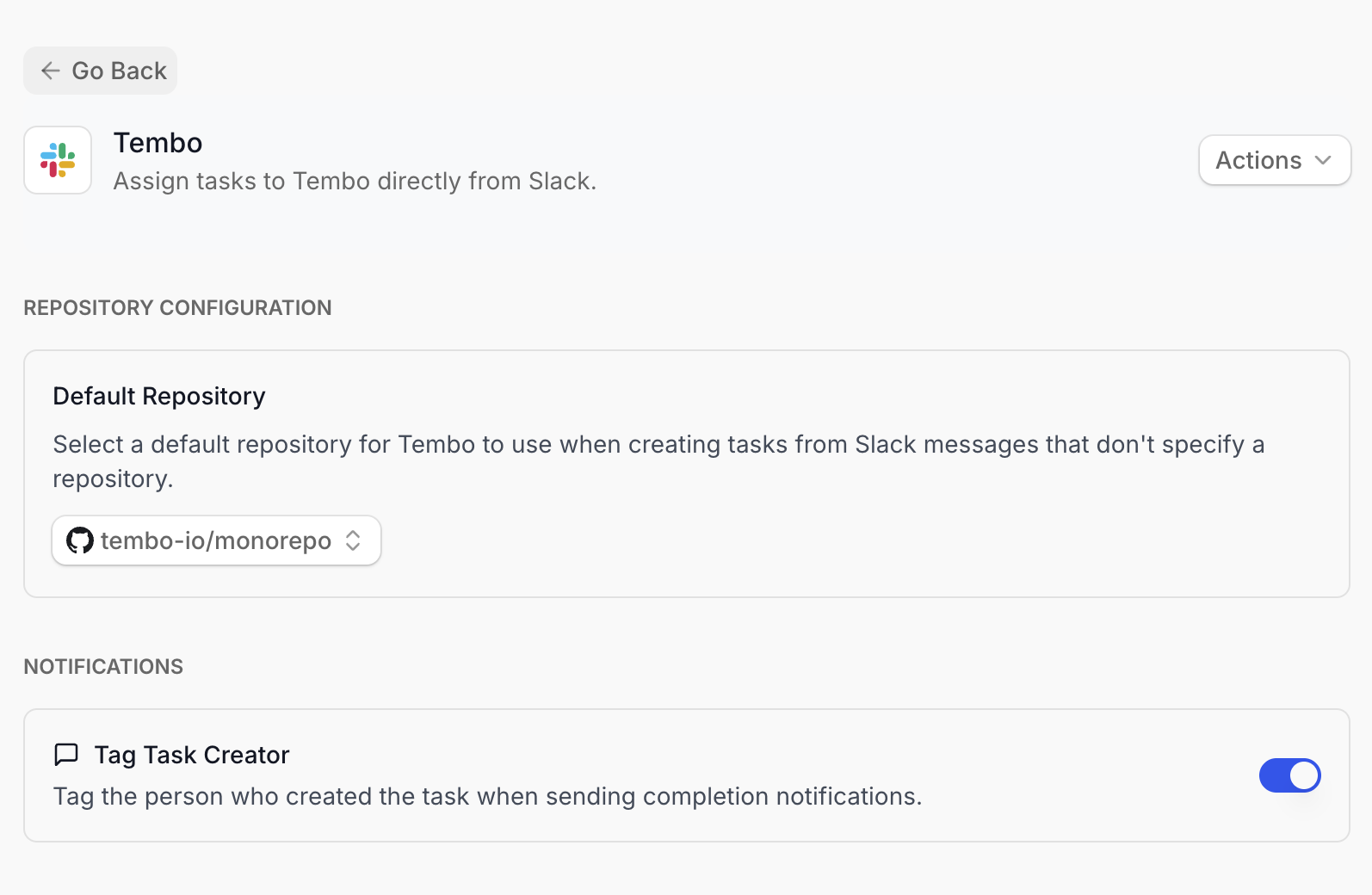
Usage
Basic Commands
Start a Background Coding Agent
Advanced Command Options
Tembo supports flexible command syntax with multiple options. You can use either bracket format or inline format:Bracket Format
Available Options
-
branch=- Specify the base branch for the PR- Example:
branch=main,branch=develop,branch=feature/auth
- Example:
-
repo=- Target a specific repository or multiple repositories- Single repository:
repo=owner/repository,repo=myorg/webapp - Multiple repositories:
repo=owner/frontend,owner/backendorrepo=frontend backend(space-separated) - Example:
@tembo [repo=myorg/webapp,myorg/api] Add authentication to both frontend and backend
- Single repository:
-
agent=- Specify which coding agent and model to use (format:agentType:model)- Example:
agent=claudeCode:claude-4-5-sonnet,agent=codex:gpt-5.2 - Supported coding agents:
claudeCode,codex,opencode,amp,cursor - If no coding agent is specified, Tembo uses your organization’s default configuration
- See Coding Agents documentation for all available options
- Example:
Working with Multiple Repositories
For tasks that span multiple repositories (e.g., full-stack features):-
Specify multiple repos in the command:
or use space-separated format:
- Tembo will create separate pull requests for each repository and coordinate changes across all selected repositories
-
Example use cases:
- Full-stack features requiring both frontend and backend changes
- API changes that need updates in multiple service repositories
- Documentation updates across multiple repos
Coding Agent Selection
Tembo automatically determines the best coding agent for your task based on your organization’s configuration. Here’s how the selection works: Default Behavior:- If you don’t specify an agent, Tembo uses your organization’s default agent configuration
- You can set organization-wide defaults in the Settings page
- Individual repositories can override these defaults in their settings
Thread Context Utilization
When you mention@tembo in a thread, the coding agent automatically:
- Reads the entire conversation history
- Understands the context from previous messages
- Incorporates team discussions into the solution
Supported Triggers
Tembo reacts to Slack interactions and maps them to automation triggers (use aslack.* naming convention in your triggerName, e.g., slack.app_mention). The Integrations page in the app shows the live set enabled for your org. Supported events:
app_mentionslash_commandmessage_actionthread_reply
Status Updates
Tembo keeps you informed throughout the task lifecycle: Reaction indicators on your message:- ⌛️ Hourglass - Tembo is working on the task
- ✅ Check mark - Task completed successfully
- ❌ X mark - Task failed or encountered an error
- Progress updates as the coding agent works
- Pull request links when code changes are ready
- Error details if the task cannot be completed
- Links to generated pull requests with summary of changes
Feedback Loop Integration
When you create a task from Slack and later provide feedback on the pull request through GitHub or GitLab (using the Feedback Loop), Tembo will automatically notify you back in the Slack thread when your feedback has been processed: What happens:- You mention
@temboin Slack to create a task - Tembo creates a pull request on GitHub or GitLab
- You review the PR and leave feedback by mentioning
@temboin your GitHub/GitLab review or comments - Tembo processes your feedback and updates the PR
- Tembo posts a notification back to the original Slack thread with a summary of changes and a link to the updated PR
- A summary of the changes made based on your feedback
- “View Updated PR” button to review the changes
- “View on Tembo” button to see the full task details
- Status reactions on your feedback messages (⌛️ while processing, ✅ when complete)
Best Practices
Write clear, specific task descriptions: Good examples:- Team discusses the problem and potential approaches in a thread
- When ready, mention
@tembowith the final task description - Tembo reads the full thread context and incorporates the discussion
Troubleshooting
Tembo Not Responding to Mentions
If Tembo doesn’t respond when you mention@tembo:
- Check bot installation - Verify Tembo is installed in your workspace on the Integrations page
- Verify channel access - Ensure the Tembo bot has been invited to the channel (
/invite @tembo) - Review permissions - Confirm all required permissions were granted during installation
- Check integration status - The integration may need to be reconnected if permissions were revoked
Tasks Not Creating Pull Requests
If tasks are acknowledged but no pull requests appear:- Verify repository connection - Ensure you have connected GitHub, GitLab, or Bitbucket repositories to Tembo
- Check repository mapping - Confirm your default repository is set correctly in the Slack integration settings
- Review task description - Provide clear, actionable task descriptions that specify what code changes are needed
Wrong Repository Targeted
If Tembo creates PRs in the wrong repository:- Set default repository - Configure your preferred repository in the Slack integration settings
- Use explicit repo option - Specify the repository in your command:
@tembo [repo=owner/repo] your task - Check organization settings - Verify the default repository setting at the organization level